
Startup Pitch Deck Templates
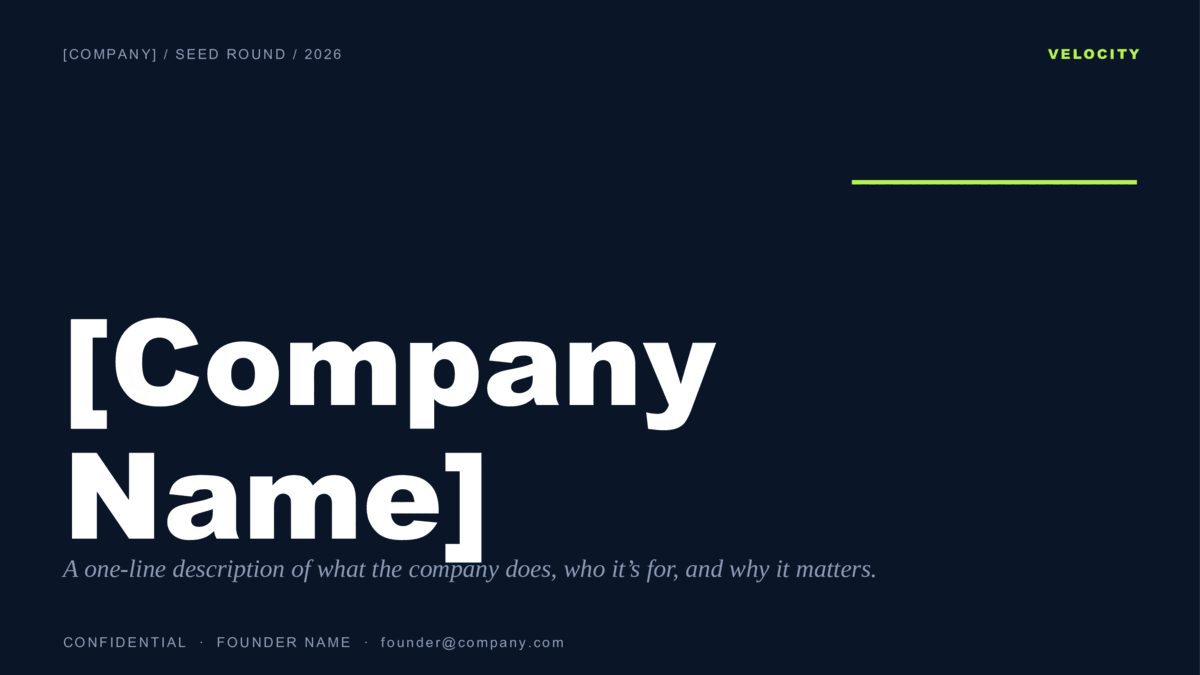
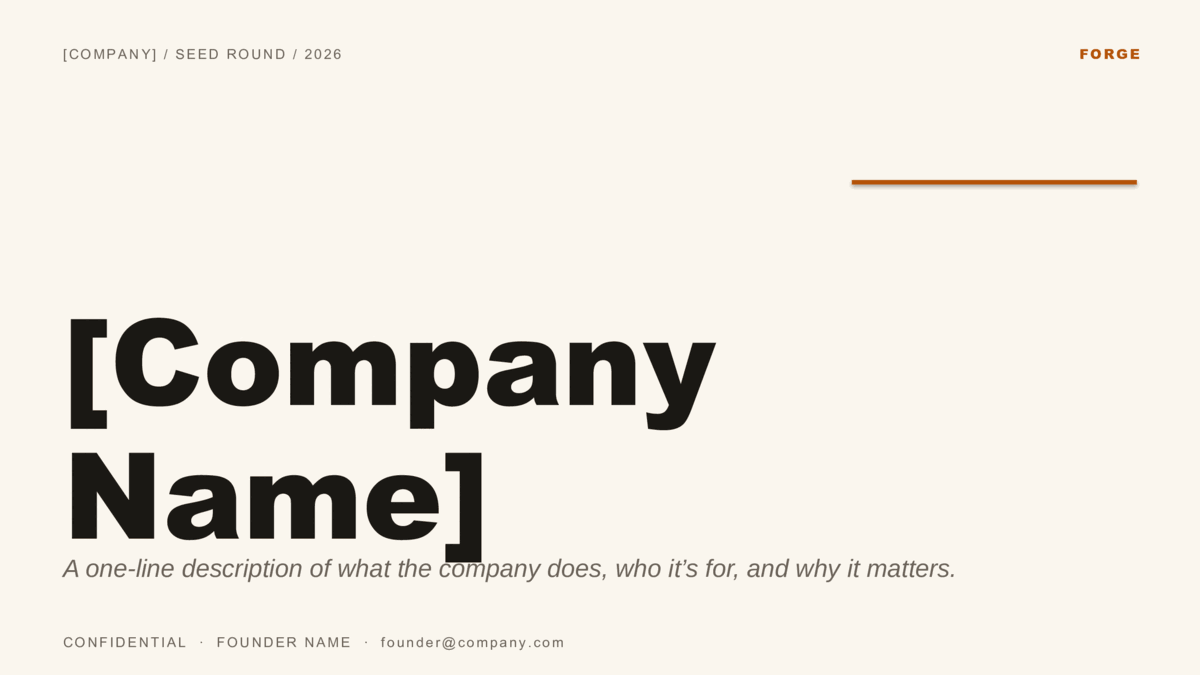
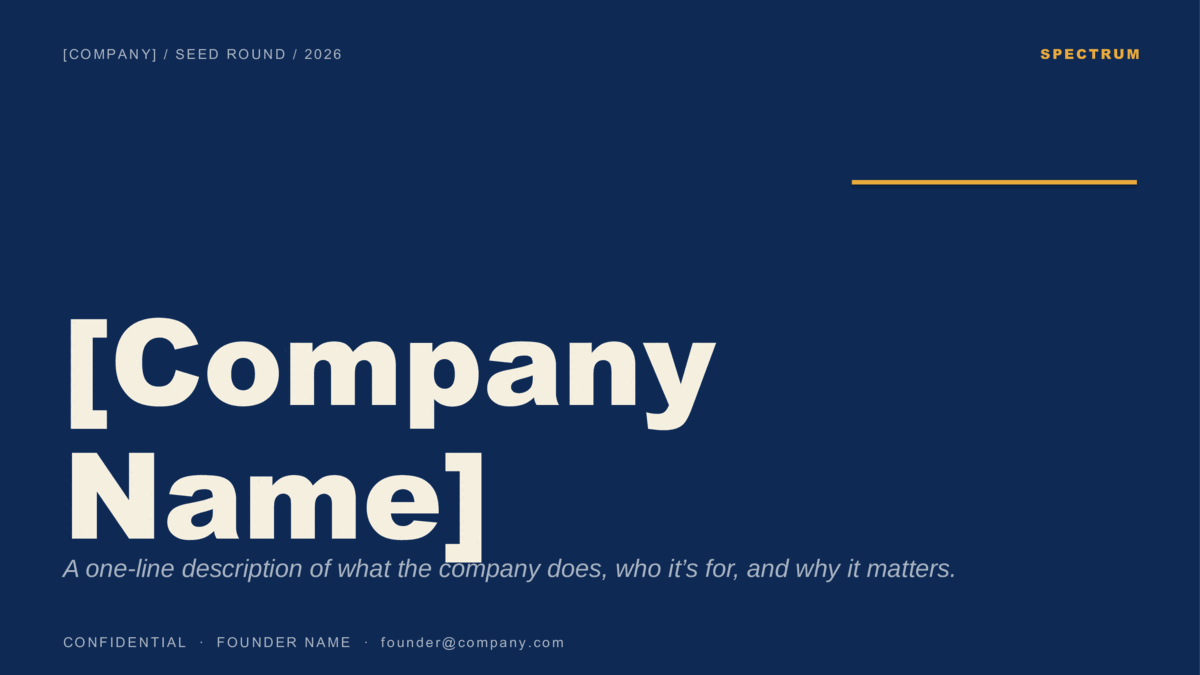
Three founder pitch decks — Velocity for B2B SaaS, Forge for consumer and editorial, Spectrum for the design-forward. Each is laid out in the ten-slide order investors expect, with realistic seed-stage placeholders (ARR, NRR, TAM/SAM/SOM) so it's usable from the first open. Download for PowerPoint or copy to Google Slides — free for the raise, no signup.
Three takes on the same ten-slide pitch.
Same investor-standard structure, three visual tones — so choose on look, not layout. Velocity runs dark and technical, Forge reads warm and editorial, Spectrum gives every slide its own color. Open a card to see all ten slides and choose your format.
What goes on each slide.
Every design follows the sequence investors are trained to read — Problem before Solution, Market before Product, Ask last. It's the same skeleton behind Sequoia's pitch-deck format and Guy Kawasaki's 10/20/30 rule; re-ordering it just makes an investor work harder to follow you.
From template to your raise.
- PowerPoint or Google Slides: download the
.potxor click Use in Google Slides to copy the whole deck into your Drive. Same ten slides either way. - Replace the bracketed placeholders ([Company Name], [customer type], [Photo]) and the sample numbers with your own. The decks ship with realistic seed-stage figures — swap them rather than starting from a blank slide.
- Keep the order. Problem before Solution, Market before Product, Ask last — that’s the sequence investors expect, and holding to it is the difference between a deck they skim and one they follow.
Slides, structure, and stages.
How many slides should a startup pitch deck have?
What goes on each slide, and in what order?
What is the 10/20/30 rule?
Do these work for a pre-seed, seed, or Series A raise?
Can I edit the deck in both PowerPoint and Google Slides?
Are they free to use for a real fundraise?
More presentation templates.
- How to build a startup pitch deck — The ten-slide order, what goes on each slide, and how pre-seed, seed, and Series A decks differ.
- How to edit a PowerPoint template — Opening a template, applying it to a deck you already have, changing colors on the Slide Master, and saving your own.
- How to use a Google Slides template — Copying a template to your Drive, editing the theme, bringing in a PowerPoint file, and sharing a template with a team.