




10 Free To-Do List Templates
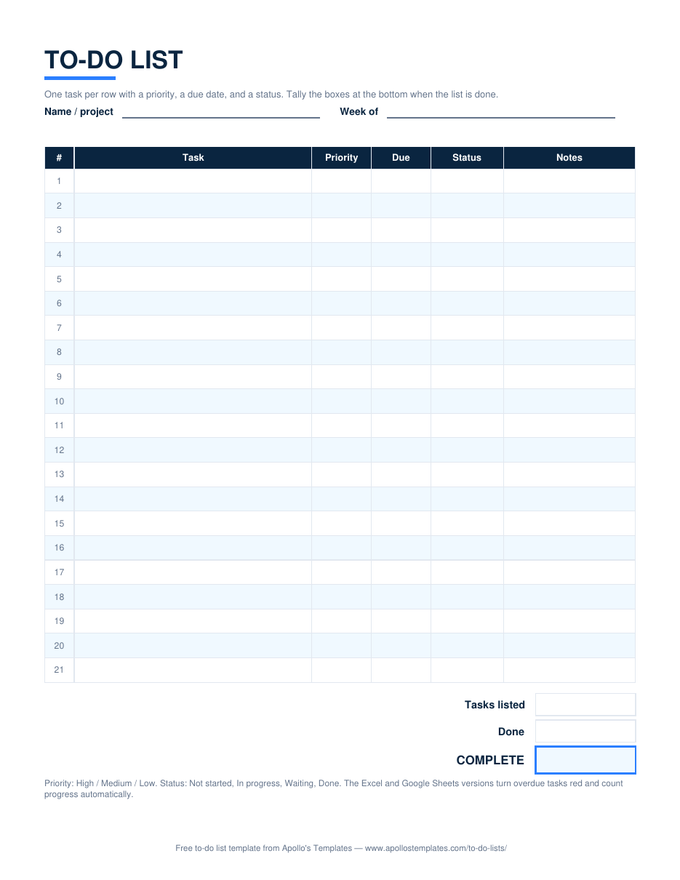
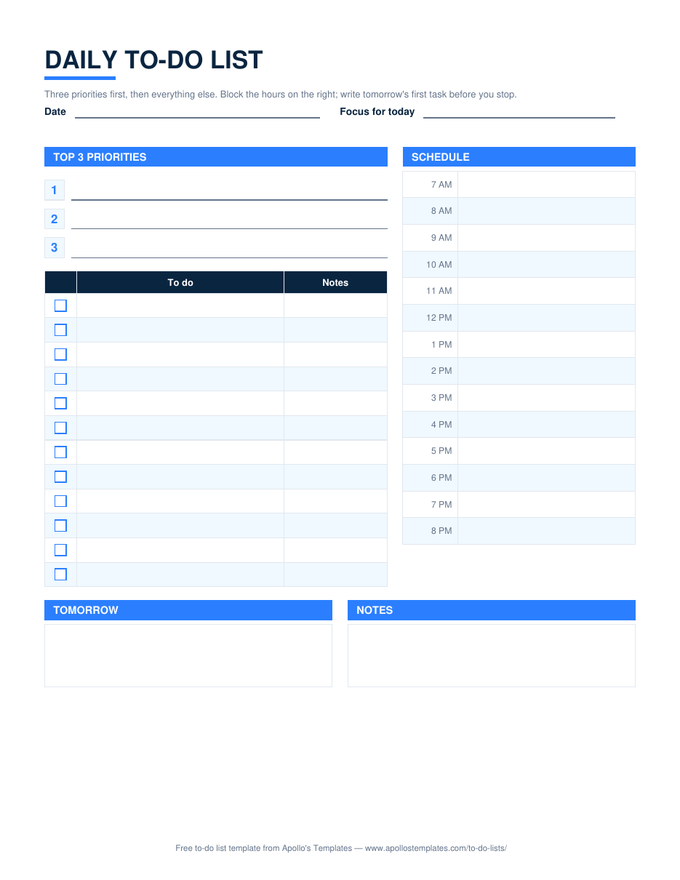
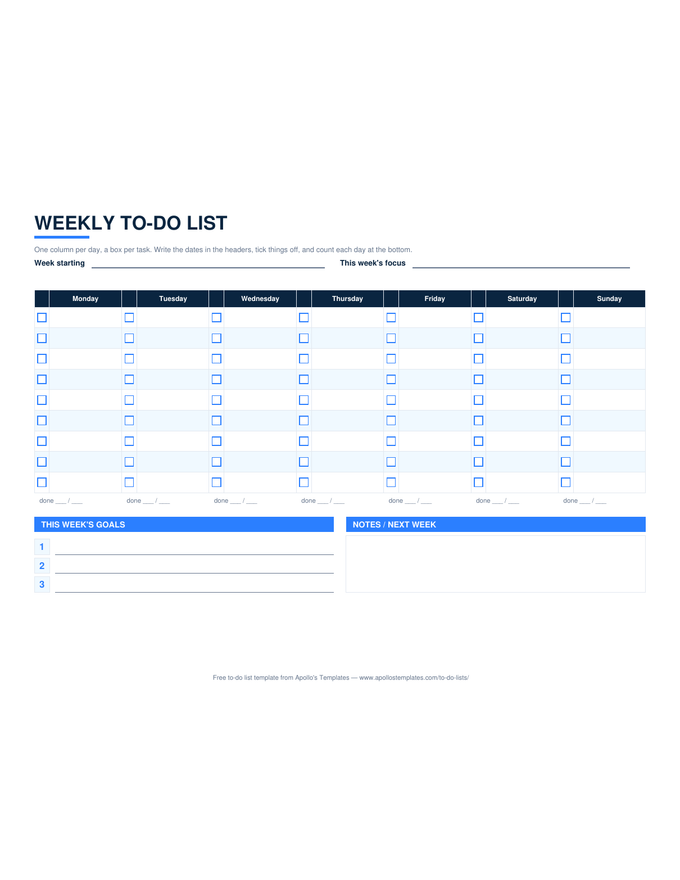
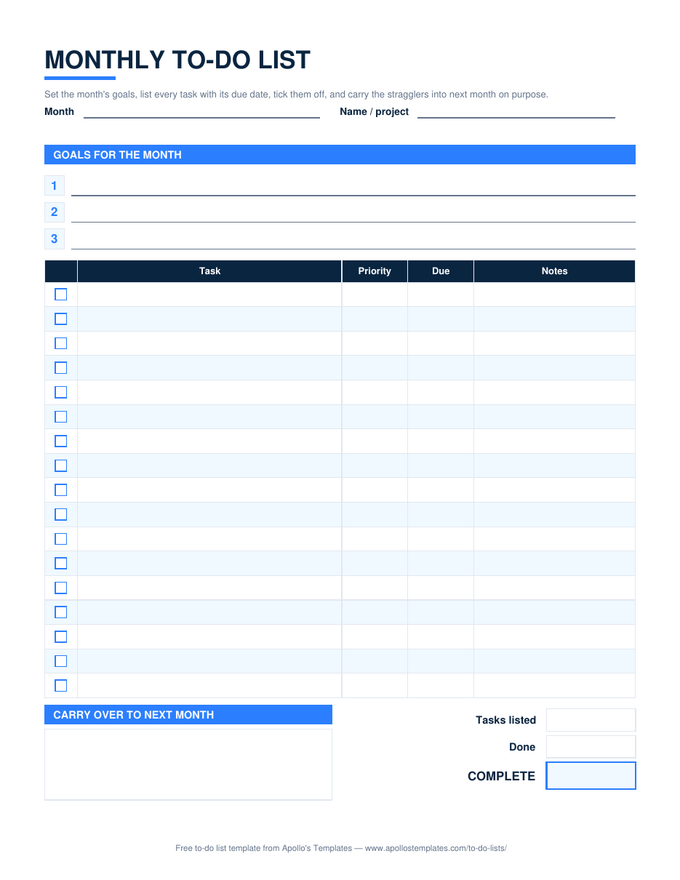
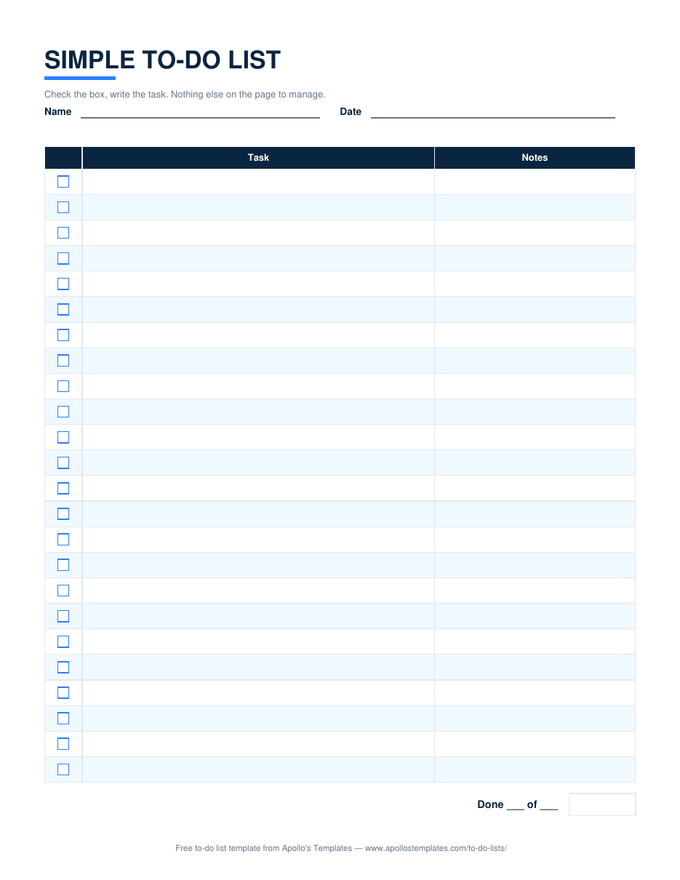
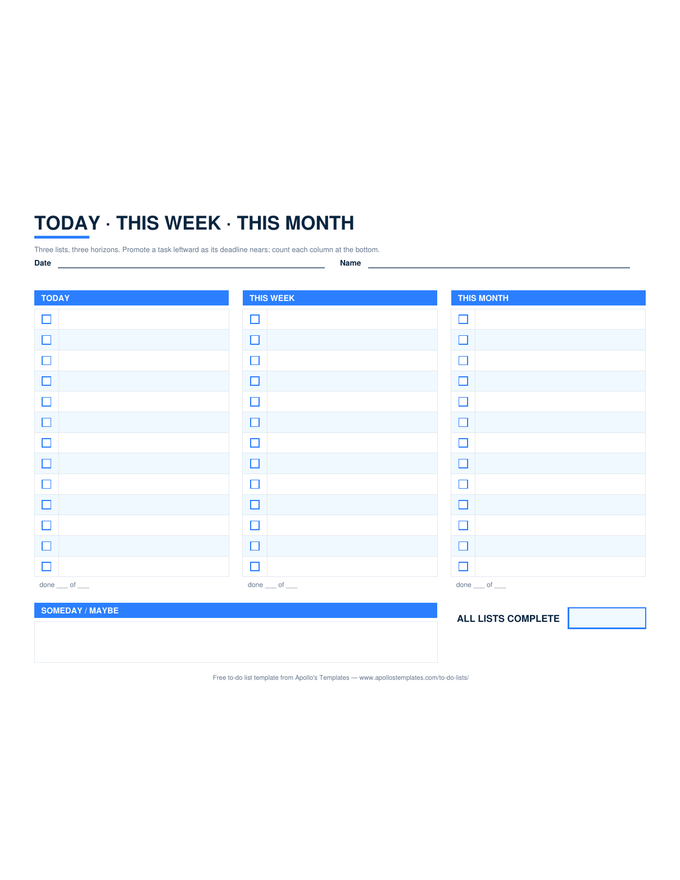
A to-do list has one job: get the things out of your head and onto a page where they can be crossed off. These ten do that job in whichever form you actually use — a printable PDF for the fridge and the desk, an Excel or Google Sheets version where a ✓ dropdown greys the task out and the done count keeps itself, a Word or Google Docs file you can retitle and reuse. Daily, weekly, and monthly lists; a simple three-column list; a grouped checklist; a numbered things-to-do page; a cute one; and a full list with priority, due date, and status where overdue tasks turn red.
Ten lists, from a blank page to a full tracker.
Each card downloads the Excel version with the working count — or opens a Google Sheets copy in your Drive. Every list also has a printable PDF, a Word file, and a Google Docs copy on its own page and on the format pages below.
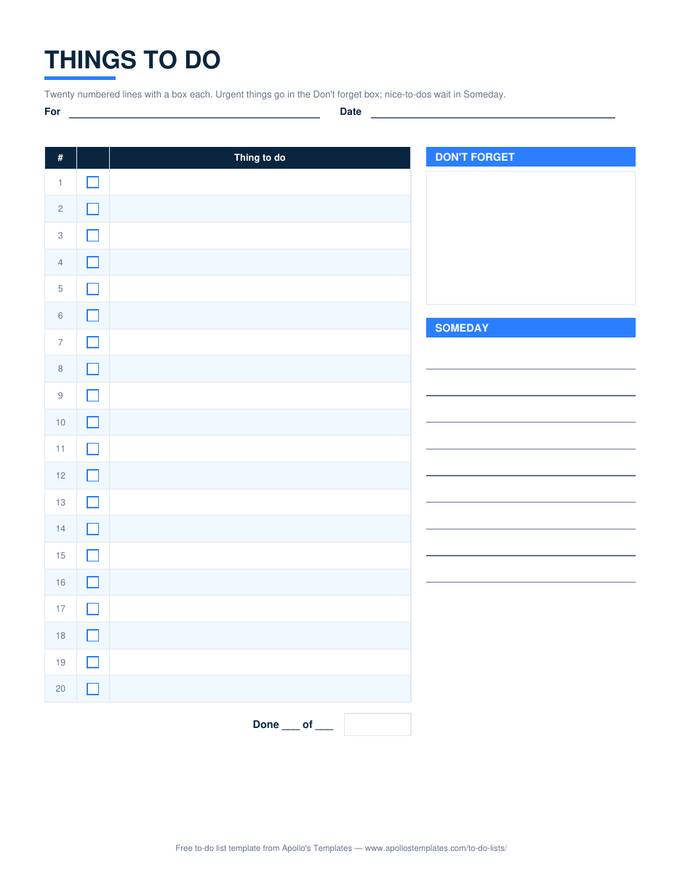
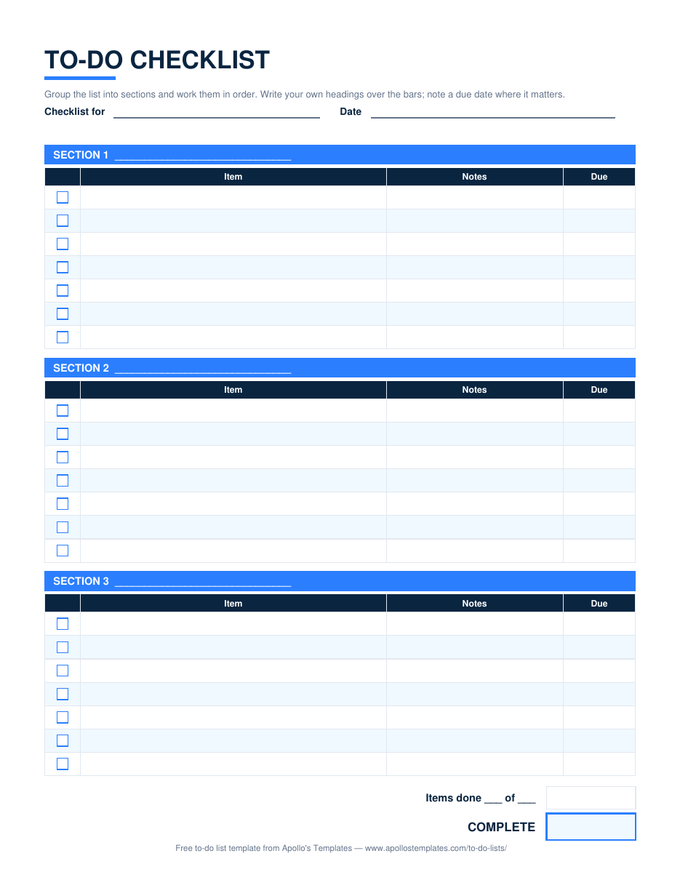
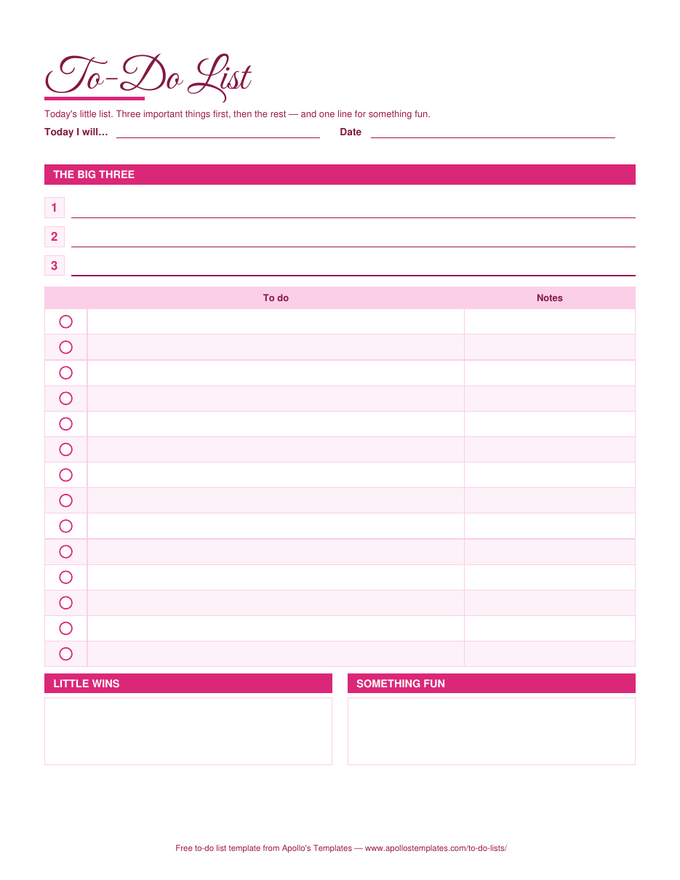
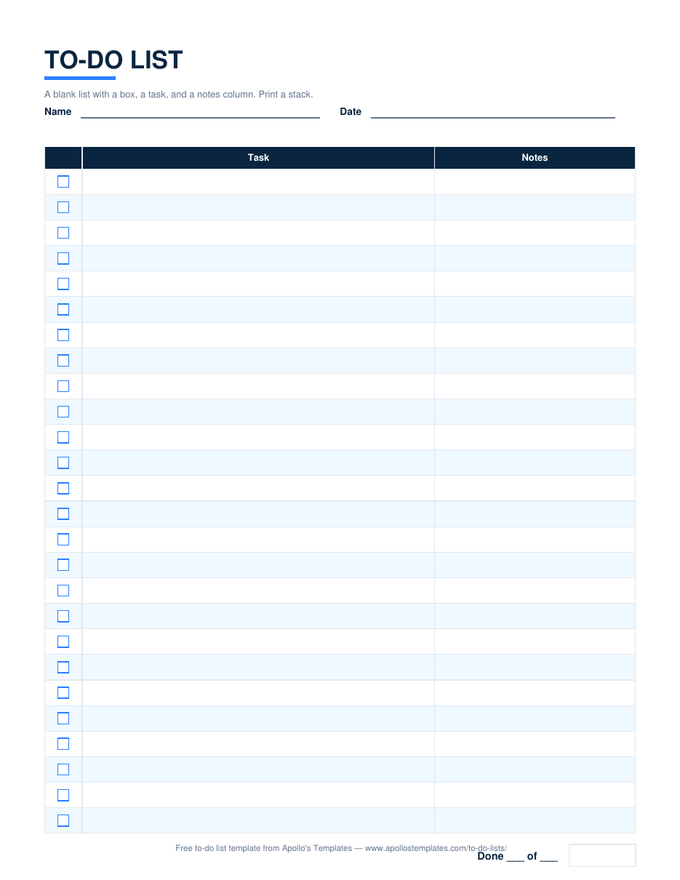
The maker, the examples, and a short guide.
The same ten lists, the way you work.
Task lists, trackers, and the sheets a team runs on.
Different words, different object: a task list has an owner, a due date, and a status, and it lives in a spreadsheet that counts. Ten of them, all with the formulas working in Excel and Google Sheets.
Lists shaped for a person or an occasion.
What is a to-do list template?
A to-do list template is a pre-built page for writing down tasks and marking them done — a box, a line, and usually a place for the date. The useful ones add just enough structure for a particular rhythm: a daily list has room for the day’s top priorities and its hours; a weekly list has a column per day; a monthly list has goals and due dates; a checklist groups recurring steps into sections. What separates a good template from a blank page is that the structure does some of the thinking — the three-priority limit, the carry-over box, the count of what is done.
The words people search for map to different objects. A to-do list is personal and usually printed or kept in Docs; a things to do list is the numbered capture page; a checklist is reused and sectioned; a task list or task tracker is the work version with an owner, a status, and a due date in a spreadsheet. This library keeps them separate on purpose, so the page you land on is the thing you meant.
Why these lists are built the way they are.
“I’ve always been a strong believer in quality to-do lists. Without it, I lack focus. Hopefully these result in better daily execution!”— David
- One ✓ column, everywhere. The first column of every spreadsheet list is a ✓ dropdown; pick it and the row greys out. The counts use COUNTIF on that column, so an empty row never counts as a task.
- Blank until you type. Progress reads blank on an empty sheet, not 0%, so a half-filled list never lies about itself.
- The cute list is a different design, not the plain one recolored — it leads with the Big Three and ends with little wins, because that is what the people who want a pretty list also want.
- Word and Docs don’t count, and the pages say so. They are for the lists you retitle, share, and print.
Tracking hours rather than tasks? The timesheet templates use the same working-formula treatment for time.
Download, copy, or print.
- Excel: download the
.xlsx, pick ✓ from the first column as you finish tasks, and the count keeps itself. - Google Sheets or Docs: click the Open button, then Make a copy — the list lands in your own Drive.
- Paper: print the PDF from the printable page and keep a stack where the list lives — the fridge, the desk, the dash.
To-do list template FAQ
What should a to-do list template include?
Which to-do list template is best for me?
Are these to-do list templates really free?
How do the Excel and Google Sheets versions count tasks?
Is there a to-do list template for Google Docs and Word?
Free to-do list templates · Updated September 2026 · by David Nelsen — built for the desk, the fridge, and the spreadsheet tab that stays open all day.