





Apollo's Templates
HomeTo-Do List TemplatesTask management
Three tabs, one system

Task Management Spreadsheet

The task manager for a small team that does not want software: a Tasks tab that is the master list, a Dashboard tab that reads it \u2014 by status, by priority, by owner, by category, plus overdue and percent complete \u2014 and a Lists tab where you type the owners and categories once and they become dropdowns. Overdue rows turn red on the Tasks tab, done rows grey out, and nothing on the Dashboard has to be typed. It copies to Google Sheets with all three tabs working.

Three formats

The task management sheet, three ways.
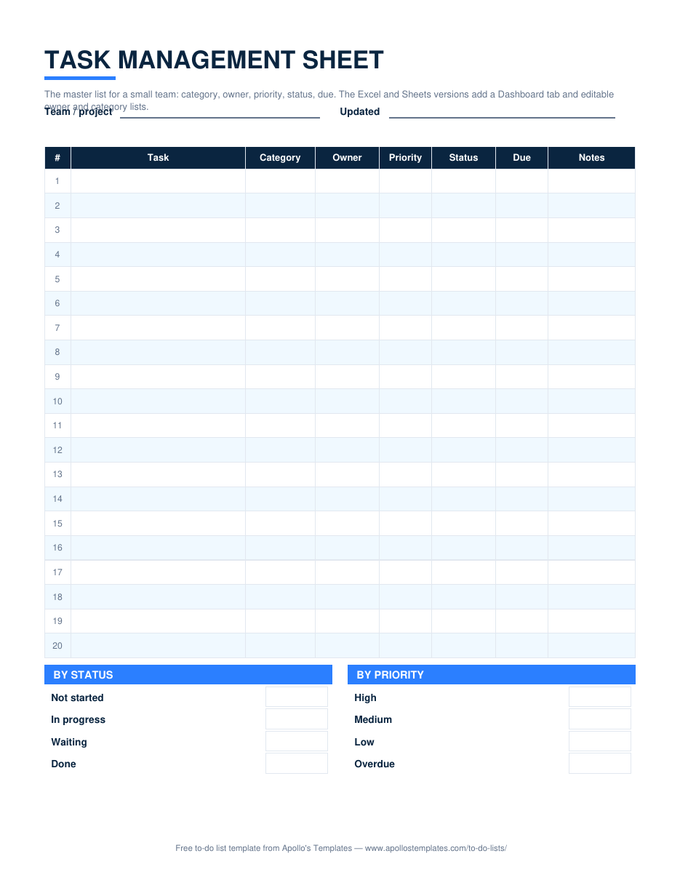
Excel — three tabs

Tasks, Dashboard, and Lists. Edit owners and categories on Lists; assign from dropdowns on Tasks; read the Dashboard. Verified working after the Google Sheets import.
Task management sheet with category, owner, priority, status, and due columns, a progress strip, and a note pointing to the dashboard tab
PDF

Printable PDF

The master list as one printable page with by-status and by-priority boxes underneath.
Download PDF

Word (.docx)

The Tasks table as a Word document for a status report — the dashboard lives in the spreadsheet.
Worth knowing

The Lists tab is where the system lives.

Every team task system fails the same way: three spellings of one person’s name, five categories that mean the same thing, and a dashboard that quietly stops adding up. The Lists tab prevents that by making the names a dropdown rather than a habit. Spend five minutes agreeing the categories before the first task goes in, and the Dashboard will still be true in six months.

Read the Dashboard by owner before you read it by status. The status view tells you how the work is going; the owner view tells you who is drowning, which is the earlier and more useful signal.

One list, one dashboard
Task Tracker
Days left and a dashboard on a single sheet.
Open
Per-person view
Employee Task List
Team dropdown and by-employee counts on one page.
Open
Every work sheet in Excel
Task List Templates for Excel
The nine task sheets with formulas.
Browse

Frequently asked questions

How is this different from the task tracker?
Scope and tabs. The tracker is one sheet for one list with a dashboard at the bottom. The management workbook is built for a team's whole workload: owners and categories come from a Lists tab so everyone uses the same names, and the Dashboard tab breaks the work down by person and by category, which is what a weekly team meeting needs. If you have one list and one owner, use the tracker.
How do I add or change owners and categories?
Open the Lists tab and type in the Owners and Categories columns — up to eight each. The dropdowns on the Tasks tab and the by-owner and by-category tables on the Dashboard read those cells, so the change is everywhere at once. Blank cells are ignored.
Does the Dashboard work in Google Sheets?
Yes. The formulas are COUNTIF, COUNTIFS, and SUMPRODUCT across tabs, which Sheets converts exactly; we import the workbook after every rebuild and read the Tasks-tab progress strip back to confirm the counts survive. Open in Google Sheets puts your own copy in Drive.
Can several people edit it at once?
In Google Sheets, yes — share your copy and each person updates their own rows; the Dashboard is live for everyone. In Excel, put the file on OneDrive or SharePoint for co-authoring, or keep one owner of the file and have people send updates. The Lists tab is the thing to protect: lock it once the names are right.
Updated through September 2026